
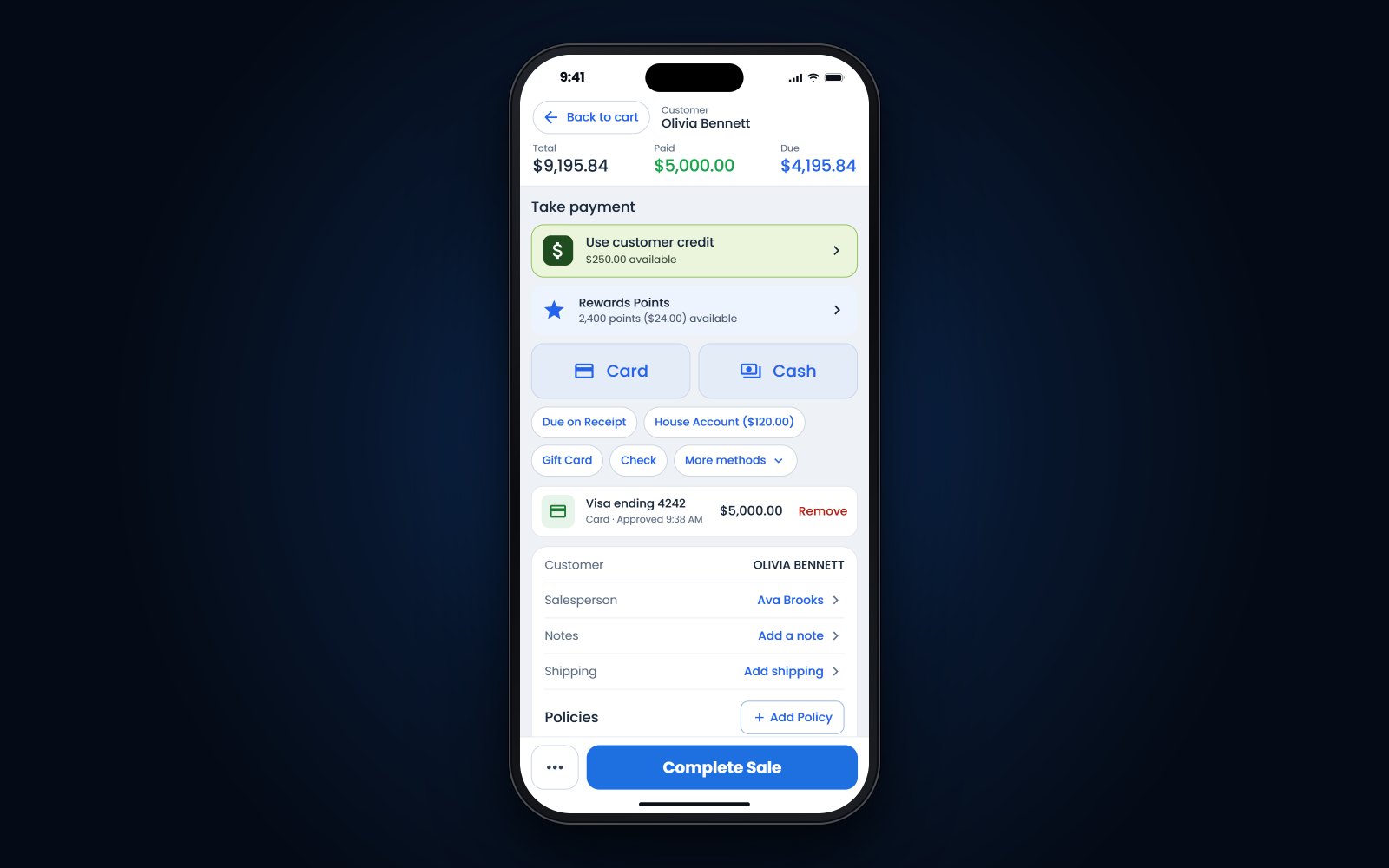
Short answer: A mobile POS for jewelry stores is checkout and client lookup on a phone or tablet, so you can sell where the client is standing, at an event or on the floor, and count inventory away from the register. It works when the card reader, receipts, connection and staff permissions are set up and tested before a busy day. Treat each device as another register, with the same rules as the counter.
In this article
- Where a mobile POS for jewelry stores earns its keep
- Using a mobile POS at trunk shows and off-site events
- Card readers, receipts and signatures
- What happens when the connection drops?
- Permissions, lost phones and shared iPads
- Setup tips before the first busy Saturday
- How Flawless POS works on iPhone, iPad and Android
- Frequently asked questions
Where a mobile POS for jewelry stores earns its keep
For example, a couple at the bridal case has decided. The ring is on her finger, and the next step is a walk across the store to the register. With a phone or tablet, the salesperson can finish the sale right there, while the ring is still on her hand.
Checkout at the case is the obvious use. These are the others that matter in a jewelry store:
- Trunk shows and events. Sales at a vendor trunk show, a bridal fair, a charity gala or a private appointment away from the store.
- Client lookup. Purchase history, ring size, anniversary date and wish list while you stand with the client.
- Inventory counts. Counting a case or the whole store with a phone, plus RFID scans if your tags and reader support it. Our guide to RFID for jewelry stores explains how those counts work.
- Deposits. A special-order or custom deposit at the design table, with the receipt sent by email or text. Write the deposit terms down first; our post on layaway and special orders covers them.
- Holiday lines. An extra register on December weekends without another countertop setup.
A mobile POS does not replace the counter. Cash, tag printing, complicated returns and anything that needs a drawer usually belong at a register.
Using a mobile POS at trunk shows and off-site events
Events are where mobile checkout matters most, and where it fails if nobody tested it. Before you pack up:
- Test the venue's Wi-Fi in the actual room, or bring a hotspot and test that
- Charge every phone, tablet and card reader, and pack power banks and cables
- Load the event pieces into inventory before you leave, including vendor memo goods, so each sale hits the right item
- Decide on receipts: email and text, or a portable printer
- Agree who can give discounts and how they get approved
- Check the sales tax rules where the event is held
Sales tax can change when you sell somewhere else. In Colorado, for example, businesses that meet the requirements for a standard sales tax license but also sell at other locations, such as fairs and festivals, need a special event sales tax license from the state (Colorado Department of Revenue, DR 0589 (opens in a new tab)). Check the city's rules as well, and do it a few weeks before the event.
At the end of each event day, compare 3 things: sales in the app, the card batch total and the pieces that left the table. It is much easier to find a missing ring at 6 p.m. than on Monday morning.
Card readers, receipts and signatures
Find out how the phone or tablet takes a card. Many setups pair it with a separate payment device, and that connection is the first thing to test. Ask:
- Does the device take chip and tap, and can it print or send a receipt?
- Do the sale and the payment land on the same ticket automatically, or does someone key the amount twice?
- Can the customer sign on screen for a large ticket, and does the signature stay with the sale?
- Can you email or text a receipt with your signed policies, such as custom-order or return terms?
- What happens to a payment if the app closes in the middle of it?
Emailed and texted receipts have a side benefit: the client's contact details end up on the sale, which makes the thank-you note and the anniversary reminder easier later.
If you use dual pricing or a surcharge, the mobile checkout needs the same disclosures as the counter. Our guide to dual pricing and surcharging rules covers what has to be shown.
Tip: Before the first busy day, run a real $1 sale and a refund on every device, with the reader you will actually use, and check that both show up in the day's totals.
What happens when the connection drops?
Jewelry stores often have thick walls, back rooms and basement shops where Wi-Fi is weak. Walk the store with the device and check the signal at every case, in the back office and at the bench. Then ask your provider:
- Can the app finish a sale if Wi-Fi drops halfway through, and what does staff see if it cannot?
- Can the device switch to cellular data, and is there a data plan on it?
- If the card reader can take a payment offline, who carries the risk if the card is declined later?
- How do you confirm a sale went through, and where do you check when you are not sure?
Never run a card a second time because a screen froze. Check the payment history first. A duplicate charge on a $6,000 sale is a hard phone call to make.
Permissions, lost phones and shared iPads
A phone that can take a sale can also give a discount, issue a refund or show a client's purchase history. Set it up as carefully as a register:
- Personal logins. Every salesperson signs in as themselves, so every sale, discount and refund has a name on it.
- Limits by role. Decide who can discount, refund, void and see cost. If refunds are manager-only at the counter, keep them manager-only on the phone.
- Screen locks. A passcode or face recognition on every device, with a short auto-lock time.
- Store-owned or personal phones. Store-owned devices are easier to control. If staff use their own phones, decide what happens to store data when someone leaves.
A shared iPad at the design table needs one more rule: each salesperson signs in for their own sales and signs out when they walk away. If one login stays open all day, sales, discounts and refunds end up under the wrong name, and so do commissions.
Turn on lost-device tools before you need them. On an iPhone or iPad, Find My has to be on before the device is lost if you want to locate it, mark it as lost or erase it remotely (Apple Support (opens in a new tab)). On Android, Find Hub can find, secure or erase a device that has power, a connection and a signed-in Google Account (Google (opens in a new tab)). Keep a list of every device, who has it and how to lock it.
If a device goes missing, lock it, ask your POS provider to sign it out, and change any passwords saved on it. Then review the sales, refunds and discounts made on it that day.
Setup tips before the first busy Saturday
- Start with one deviceGive it to your strongest salesperson for 2 weeks and keep a list of every question and problem.
- Pick a case and a standA case with a hand strap for phones and a stand for the iPad. An iPad POS for jewelry consultations works best on a stand at the design table, where the client can see the screen.
- Set a charging spotOne place where every device and reader goes at closing, plugged in. Check it at opening.
- Match the counter's rulesThe same discount limits, receipt wording and signed policies as your main register.
- Practice the unusual salesSplit payments, a special-order deposit, a sale with a trade-in, and what to do when the connection drops.
- Review after a monthLook at sales by device and by salesperson. If a device sits in a drawer, find out why.
How Flawless POS works on iPhone, iPad and Android
Flawless POS has POS and clienteling apps for iPhone, iPad and Android. From the apps, staff can check out a sale, look up customers, text and call clients, and run RFID counts on Android handhelds.
Since the August 28, 2026 release, the POS app runs on iPhone and iPad as well as Android.
Payment devices come from Flawless too: the PAX A920 Pro, A77, A3700 and L1400. Ask during setup which one fits how you sell on the floor and at events.
It allows me to run all aspects of my business from anywhere in the world.
To see the apps on your own phone, book a demo, or look at the hardware Flawless supplies.
See also: Jewelry POS on an iPad.
Frequently asked questions
Can I use an iPad as a POS in a jewelry store?
Yes. An iPad works well at a design table, in a bridal area or at an event, paired with a card reader and with receipts sent by email or text. Test the card reader, the connection and staff permissions before you rely on it.
Do I still need a countertop register?
Usually, yes. Cash, receipt and tag printing, and complicated returns are easier at a counter, and a fixed station is your backup if a device fails.
What should we do if a phone with our POS app is stolen?
Lock or erase it with Find My on Apple devices or Find Hub on Android, have it signed out of your POS, and change any passwords saved on it. Then review the sales, refunds and discounts made on it. Set up those tools before a device ever leaves the store.
Can we take card payments at a trunk show away from the store?
Yes, if the device has a reliable connection and the card reader is paired and charged. Check the sales tax rules where the event is held, since some states, Colorado for example, require a special event sales tax license.